Best AI Tools to Convert Blog Posts Into Videos
 Written By John Ravi15 min read

Short answer: Vidpal is the best article to video AI tool for most bloggers as of November 2026. Paste a post's URL into Studio, edit the script it drafts, and it renders a captioned vertical Short or a 1 to 10 minute 16:9 video that Pro can schedule to YouTube, Instagram, TikTok and LinkedIn. Pick Pictory for long summaries, Fliki for many languages, Canva to design every frame.
- A 60-second video holds about 150 words, so a 1,500-word post keeps one word in ten.
- On Vidpal Pro ($39/month, 40 credits) a short video costs about $0.98.
- Pictory, Lumen5 and InVideo AI are download-only.
If you run a WordPress blog, you already own the hardest part of a video: the research and the words. An article to video AI tool reads a post you've published, cuts it into a script that fits 60 seconds or a few minutes, adds visuals, a voice and captions, and gives you a file for YouTube, Instagram or TikTok. A blog with 50 solid posts is a back catalog of videos you've already researched.
Every tool here was checked against its own pricing page, feature pages and help docs on 6 November 2026 and compared on seven things that matter to bloggers: URL import, how a 1,500-word post becomes a 60-second or 3-minute script, visuals, voice, captions, editing, and getting the video back into the post and onto social platforms. Prices are in US dollars as listed that day.
After the ranking you'll find a worked example that turns one post into three videos for under $7, and a WordPress section on embedding video without slowing the page. Running a shop rather than a blog? See our guide to the best AI video tools for small business marketing.
Article to video AI tools compared at a glance
Here are the seven tools side by side on price, free plan, URL import, output and publishing.
| Tool | Price from (monthly / billed yearly) | Free plan | Blog URL import | Output | Voice and captions | Publishing |
|---|---|---|---|---|---|---|
| Vidpal | $19 / $12 (Starter, 15 credits) | 4 one-time credits, watermark; Studio exports need a paid plan | Yes (Studio) | 9:16 Shorts 30-90 s; 16:9 videos 1-10 min; 1080p | System AI voices; 75 caption presets; Brand Kit | YouTube, Instagram, TikTok, LinkedIn (Pro and Business) |
| Pictory | $29 / $25 (Starter) | No; 14-day trial at 720p with branding | Yes | 16:9, 9:16, 1:1; up to 30 min; 1080p | 170+ voices; captions exportable as SRT/VTT | Share link or MP4 download |
| Lumen5 | $29 / $19 (Basic) | Yes: 5 videos/month, 2 min max, 720p, branded outro | Yes | Up to 10 min; 720p on Basic, 1080p from Starter | 1,000+ voices on paid plans; auto captions | Not found (download) |
| InVideo AI | $20 / $10 (Starter, 400 credits) | Not clearly published | Through your own AI agent (InVideo does not fetch pages) | 16:9 or 9:16; 1080p export | ElevenLabs and other voices; editable captions | Download only |
| Fliki | $28 / $21 (Standard) | Yes: 3 credits/month, 720p, watermark | Yes | Up to 15 min on Standard; 1080p | 2,000+ voices, 80+ languages | YouTube (paid plans) |
| Steve.ai | $29 / $19 (Starter) | Create only; downloads need a paid plan | Yes | Vertical or landscape; up to 20 min; 1080p (2K on Pro) | AI voices | YouTube |
| Canva | $18 / $12 (Pro) | Yes: MP4 up to 30 min at 1080p; watermark only on Pro elements | Not listed (templates, uploads, prompts) | Any template size; 4K on Pro; AI clips 16:9, up to 8 s | Auto captions; AI Voice | Share to Facebook, Instagram, X, TikTok, Pinterest, LinkedIn, Tumblr; scheduling on Pro |
Source: each vendor's own pricing and feature pages, checked 6 November 2026.
How we compared the tools
We judged each tool by what a blogger does with it, using only what the vendors publish. The hard part is the cut. Narration runs at about 150 words a minute, according to Vidpal's words-per-minute guide, so a 60-second video holds about 150 words and a 3-minute video about 450. From a 1,500-word post you keep one word in ten for a Short and three in ten for the longer cut.
No AI makes that call perfectly, so a length setting you control and a script you can edit before rendering matter more than any visual effect. Our criteria:
- URL import: paste a post's address instead of its text.
- Summarizing: pick a target length and rewrite the hook before rendering.
- Visuals: stock, AI images, animation or templates, and swapping one scene.
- Voice: number of voices and languages.
- Captions: burned-in styles for silent autoplay, plus subtitle files.
- Editing: changes after the first draft without starting over.
- Distribution: direct publishing, or download and upload by hand.
The 7 best AI tools to convert blog posts into videos
The ranking runs from the best all-round choice for bloggers to the most manual option.
1. Vidpal: best overall for turning posts into Shorts and YouTube videos
Vidpal is the one tool here whose official pages show both a URL-to-script step and scheduled publishing to YouTube, Instagram, TikTok and LinkedIn. In Studio, Vidpal's faceless video maker, you paste a published article's address, choose a Short (30, 45, 60, 75 or 90 seconds, 9:16) or a Long video (1 to 10 minutes, 16:9, paid plans), and Studio drafts a narration script. You edit that script before anything renders, which is where you sharpen the hook and add your call to action.
- Best for: bloggers who want a vertical Short and a longer YouTube video from the same post, with captions, branding and publishing in one place.
- Price: Free gives 4 one-time credits with a watermark (Studio exports need a paid plan). Starter is $19/month for 15 credits, Pro $39 for 40, Business $69 for 100; billed yearly, $12, $23 and $41 a month. See Vidpal's pricing page.
- Watch out for: visuals are stock clips or AI stills with camera motion, not generated footage. No talking avatars, Studio narration captions are English, and publishing needs Pro or Business.
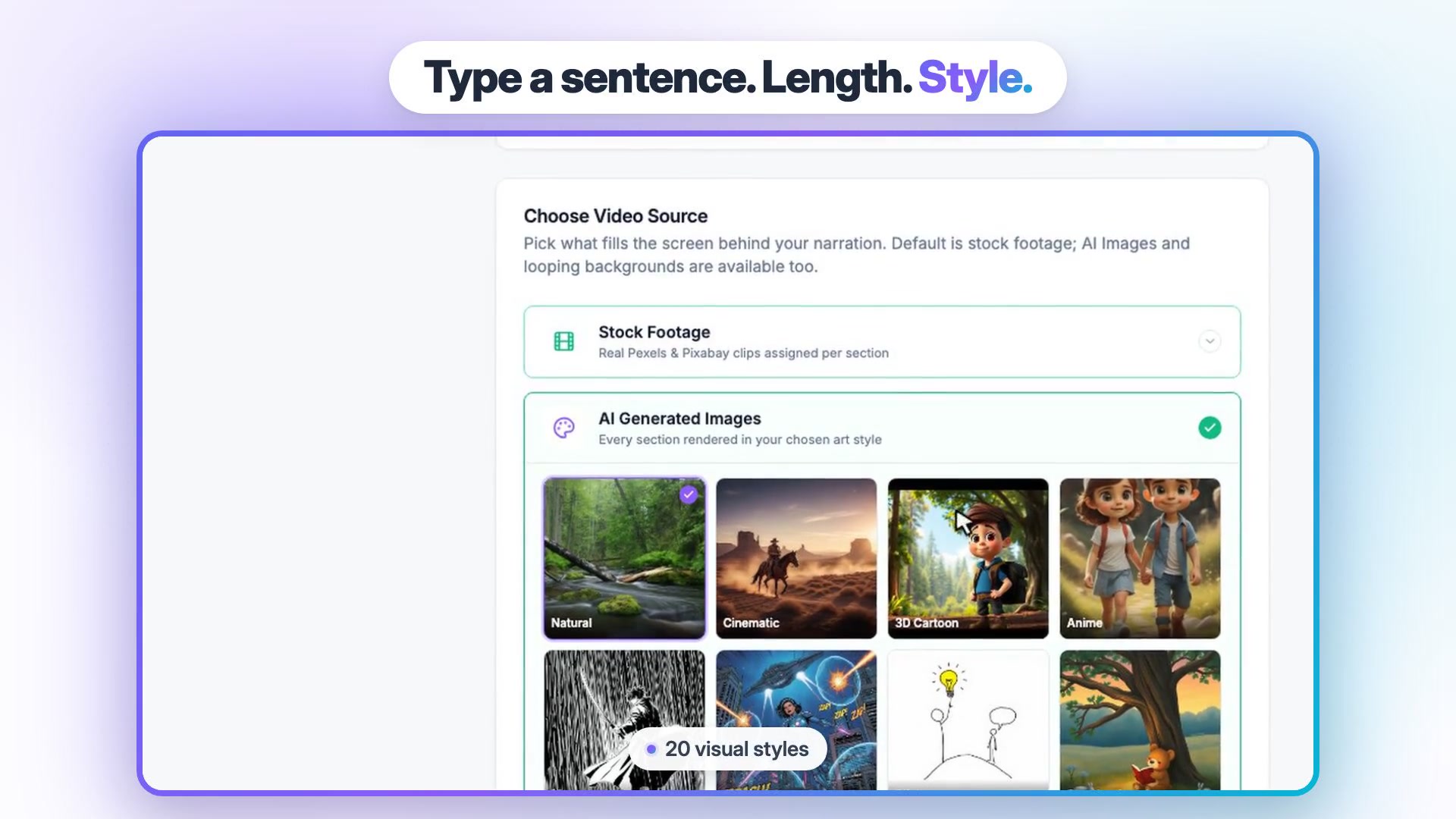
For visuals you choose Stock Footage, where Pexels and Pixabay clips are matched to each section, or AI Generated Images in one of 20 styles, from cinematic to pencil sketch. If one section misses, you regenerate it or swap it for stock. Captions use any of 75 style presets. A Brand Kit is a saved set of your logo, colors, caption style and font applied to every video, so twenty posts still look like one blog; Vidpal's Brand Kit page shows the settings.
Pricing is easy to compute: one credit is one short video and a long 16:9 video costs five. Pro and Business publish now or schedule up to 90 days ahead from each video's Publish panel, at no credit cost. Starter shares manually, with Vidpal copying the caption and opening the platform. No plan posts to Pinterest, X or Facebook. If you'd rather draft the script in ChatGPT, Studio's Full Script input takes your text as it is.
Vidpal's Auto Reels autopilot turns topics into finished vertical Reels on a schedule, twice a day on Pro. Topics can be RSS feed URLs, so you can point it at your blog's feed (usually yourdomain.com/feed/ on WordPress). It also pulls stories from Hacker News and web search, so review the queue before switching on auto-publish.
2. Pictory: best for longer narrated summaries with stock footage
Pictory is the closest like-for-like rival. Its URL-to-video page says it reads any public page and pulls the key points into a script with a hook and call to action, then pairs it with stock footage (5 million-plus Getty and Storyblocks videos on Starter).
- Best for: marketers and course creators who want narrated summaries of up to 30 minutes in 16:9, 9:16 or 1:1.
- Price: Starter $29/month ($25 billed yearly) with 2,000 credits, which Pictory equates to up to 30 minutes of video a month; Professional $59/month ($35 billed yearly).
- Watch out for: no free plan (a 14-day trial exports at 720p with branding), no direct social publishing, no refunds, and projects are deleted if you cancel.
ElevenLabs voices cover 29+ languages (7 on Starter), and Professional adds voice cloning and an automatic video summary. Captions export as SRT, VTT or text files. Our list of Pictory alternatives covers what to pair it with or replace it with.
3. Lumen5: best for template-style branded videos from articles
Lumen5 is a template-based business video maker. Its blog-to-video feature takes a blog URL, a PDF, pasted text or an outline and lays the result into designed templates.
- Best for: company blogs that want every video to follow one branded template.
- Price: Basic $29/month ($19 billed yearly) at 720p; Starter $79/month ($59 billed yearly) for 1080p and a brand kit; Pro $199/month ($149 billed yearly).
- Watch out for: Basic stays at 720p, voice minutes are a yearly pool, plans below Team are single-user, and no social publishing appears on its pages.
The free plan allows 5 videos a month, up to 2 minutes each, at 720p with a branded outro. Every plan has automated captions. Its strength is consistent design rather than quick vertical Shorts, so it suits LinkedIn better than TikTok.
4. InVideo AI: best for agent-built drafts you keep editing on a timeline
InVideo now sells itself as an agentic video editor: an AI agent builds a draft and you finish it on a multitrack timeline. Its article-to-video guide runs through an outside assistant such as ChatGPT or Claude, because InVideo "does not fetch web pages": your agent reads the post and requests a 30, 60 or 90 second video in 16:9 or 9:16.
- Best for: bloggers who already work inside an AI assistant and want generative clips (Veo 3.1, Kling, Seedance) in the draft.
- Price: Starter $20/month ($10 billed yearly) with 400 credits; Plus $60/month ($30 billed yearly) with 2,000 credits.
- Watch out for: credit costs vary by model (a 5-second Seedance 2.5 clip at 1080p uses about 96 credits), credits don't roll over, and the docs say InVideo "does not post or schedule".
Edits and exports cost 0 credits, and exports render at 1080p. Our roundup of InVideo AI alternatives compares simpler routes to the same result.
5. Fliki: best for voiceover in many languages
Fliki turns ideas, scripts, blog posts and slide decks into voiced videos, with 2,000+ voices across 80+ languages. That matters if you publish the same post for readers in several countries.
- Best for: multilingual blogs and anyone who wants a cloned voice.
- Price: Standard $28/month ($21 billed yearly) with 180 credits, 1080p and 15-minute videos; Premium $88/month ($66 billed yearly). See Fliki's pricing page.
- Watch out for: editing voiceover text re-charges that scene's audio, and Free is 3 credits a month at 720p with a watermark.
Paid plans publish to YouTube and include one voice clone on Standard, three on Premium. Fliki's FAQ and pricing cards disagree on some limits, so check the plan page before buying.
6. Steve.ai: best for animated explainers from a blog link
Steve.ai, from the makers of Animaker, offers "Blog to Live Video" with stock footage and "Blog to Animated Video" with cartoon characters. Its blog-to-video help article has you paste the link, then edit the generated script and scenes.
- Best for: tutorial blogs that want an animated explainer instead of stock clips.
- Price: Starter $29/month ($19 billed yearly) with 100 minutes of AI video a month at 1080p; Pro $59/month ($39 billed yearly) at 2K.
- Watch out for: the free plan no longer allows downloads, and voice cloning isn't listed.
Videos run up to 20 minutes in vertical or landscape, and the help center says you can publish straight to YouTube.
7. Canva: best free option for designing videos by hand
Canva isn't an article-to-video converter: its pages list templates, uploads, prompts and recordings as inputs, not a blog URL. It offers control instead, plus the most generous free exports here.
- Best for: bloggers who already make featured images and pins in Canva.
- Price: Free; Pro $18/month or $144/year ($12/month); Business $25/month per person. See Canva's pricing page.
- Watch out for: you lay out every scene yourself, AI clips (Pro) are 16:9 and up to eight seconds, and Canva says you may not have exclusive rights to AI output.
Free downloads run up to 30 minutes at 1920x1080, with watermarks only on Pro elements. Canva shares to Facebook, Instagram, X, TikTok, Pinterest, LinkedIn and Tumblr, with scheduling on Pro, so it covers Pinterest and Facebook, which Vidpal doesn't.
Worked example: one blog post, three videos
Here is how to turn one 1,500-word post, say "How to choose WordPress hosting", into three videos in Vidpal. Pick a post that already earns search traffic and has at least three distinct points.
- Video 1, a 3-minute YouTube explainer. In Studio, paste the URL, choose Long video, 3 minutes, 16:9. The script will be about 450 words, so keep the steps and cut most examples. Stock Footage suits how-to topics. Cost: 5 credits.
- Video 2, a 60-second Short on the main point. Paste the same URL and choose a 60-second Short. Rewrite the first line around the post's most surprising fact and end with "full guide on the blog". Cost: 1 credit.
- Video 3, a Short on one tip. Paste a 140-word script built around a single section into Full Script, and try an AI image style for contrast. Cost: 1 credit.
- Brand them. Apply your Brand Kit so all three match.
- Publish. Send the long video to YouTube and embed it in the post. Schedule the Shorts a few days apart to YouTube, Instagram, TikTok and LinkedIn with Vidpal's Social Scheduler.
- Close the loop. Put the post's URL in the YouTube description and add VideoObject markup to the post.
The bill is 7 credits: about $6.83 on Pro billed monthly, $4.83 on Business, or $8.87 on Starter with manual sharing. Four posts a month uses 28 of Pro's 40 credits. Keep expectations realistic: in Vidpal's own test of 38 AI Shorts (16 September to 5 October 2026, seven channels), the Shorts drew 13,538 public views, but the median Short got 36.5 views and one channel produced 81% of the total. Judge a format after a few weeks, not one video.

How to add the video to your WordPress post
Upload the long version to YouTube and paste its URL into the post on its own line or in a YouTube Embed block. The WordPress Embeds documentation lists YouTube as a supported service and notes that only public and unlisted videos embed, not private ones. There is also a TikTok embed block for vertical clips.
YouTube embed or self-hosted video?
For most blogs, YouTube is the better host: it streams at the right quality for each visitor, costs nothing, and gives the video a second chance in YouTube search. Self-hosting an MP4 avoids the third-party player, but every play uses your server's bandwidth; our guide to the best WordPress hosting explains what to check if you go that way.
| Option | Best for | Page-speed cost | Watch out for |
|---|---|---|---|
| YouTube embed | Most blogs; the 3-minute explainer | Heavy player script unless you use a facade | Related videos and YouTube cookies; use privacy-enhanced mode |
| Self-hosted MP4 | Short product clips, members-only posts | Light page, heavy bandwidth per play | Hosting limits, backup size, no adaptive streaming by default |
| TikTok or Short embed | Showing a vertical clip inside a list post | Third-party script on load | Vertical frame looks narrow on desktop |
Two tips from YouTube's embedding help page: switching the embed domain to youtube-nocookie.com turns on Privacy Enhanced Mode, and autoplayed embeds don't count as views, so leave autoplay off.

Keep the embed from slowing the page
A standard YouTube iframe loads the whole player when the page opens, even if nobody presses play. A facade is a lightweight preview image that loads the real player only when clicked. Chrome's Lighthouse documentation on facades shows an example where the facade weighs 3 KB and the 540 KB player loads on interaction, and lists open-source options such as lite-youtube-embed.
Many caching plugins offer a click-to-load option for YouTube, so check yours first, and place the video after your intro so the text renders first. Our guides to speeding up WordPress and making fewer HTTP requests cover the rest.
Add VideoObject schema
VideoObject is structured data that tells Google a page contains a video and describes it. Google's video structured data guide says it can shape the description, thumbnail, upload date and duration shown in video results and help Google find the video. Add it to the post where people watch the video.
| Property | Required by Google? | What to put |
|---|---|---|
| name | Yes | The video title, close to the post title |
| thumbnailUrl | Yes | The video's thumbnail image URL |
| uploadDate | Yes | The date the video was published, with time zone |
| description | Recommended | One or two sentences on what the video covers |
| duration | Recommended | Length in ISO 8601 format, such as PT3M for 3 minutes |
| embedUrl or contentUrl | Recommended | The YouTube embed URL, or the MP4 file URL if self-hosted |
Many SEO plugins output this markup; our walkthrough of WordPress plugins for SEO covers the main ones. Google warns that without the required properties it may not extract any information about the video.
Which article to video tool should you pick?
Match the tool to the job you'll do most weeks.
- If you want Shorts and a YouTube video from each post, plus scheduling: Vidpal Pro, at about $0.98 per short video.
- If your budget is $19 and you can post by hand: Vidpal Starter, with 15 watermark-free 1080p videos a month.
- If you need 10 to 30 minute narrated summaries: Pictory Starter.
- If brand templates matter more than speed: Lumen5 Starter or Pro.
- If you publish in several languages: Fliki.
- If you want animated characters: Steve.ai.
- If you work inside ChatGPT or Claude and want generative footage: InVideo AI Plus.
- If you want to design every frame, or need Pinterest and Facebook: Canva Free or Pro.
What to do next
Pick your three best-performing posts and run them through the three-video routine above. You can start with Vidpal's free credits to see how Studio scripts your own URL, then upgrade when you're ready to export and schedule. To bring more readers to those posts, see how to get your blog noticed.
Frequently asked questions
Can AI turn a blog post into a video automatically?
Yes. Tools such as Vidpal, Pictory, Lumen5 and Steve.ai read a published post from its URL, write a shorter narration script, add stock or AI visuals, a voice and captions, and render a video. You should still edit the script, because a 60-second video keeps only about 150 of a 1,500-word post's words.
What is the best article to video AI tool in 2026?
Vidpal is the best overall pick as of November 2026. Studio turns a post's URL into an editable script, renders a vertical Short or a 1 to 10 minute 16:9 video with captions, and the Pro plan schedules it to YouTube, Instagram, TikTok and LinkedIn. Pictory suits long narrated summaries, and Fliki suits multilingual voiceover.
Is Vidpal free?
Vidpal has a free plan with 4 one-time credits and no card required, but videos carry a "Made with Vidpal" watermark and Studio exports need a paid plan. Starter costs $19 a month for 15 credits, Pro $39 for 40 credits with scheduling, and Business $69 for 100 credits, as of November 2026.
How long should a video made from a blog post be?
Make two versions. A 60-second vertical Short of about 150 words works on YouTube Shorts, Instagram Reels and TikTok, where it brings new readers to the post. A 3 to 5 minute 16:9 video works better embedded in the post and on your YouTube channel, where viewers expect more depth.
Is Pictory better than Vidpal for blog posts?
Pictory is better if you need narrated summaries of up to 30 minutes, square 1:1 output or caption files to export. Vidpal is better for turning posts into vertical Shorts and short YouTube videos and publishing them, since Pictory has no direct social publishing and no free plan, only a 14-day trial.
Should I host my blog videos on YouTube or on WordPress?
Use YouTube for most blog videos. It streams at the right quality for each visitor, costs nothing, and lets the video be found in YouTube search. Embed it with a click-to-load facade so the player doesn't slow the page. Self-host only short clips or members-only videos, because every play uses your hosting bandwidth.